

DITA to PowerPoint: Exploring the challenges
We’ve worked on a few DITA-to-PowerPoint projects. In some cases, the project sounded like a natural fit. In other cases, the fit was less than compelling. Even in projects that seemed to have a natural fit, we encountered bumps in the road with the DITA content, the design of the slide masters, or both.
There are many good reasons to create a DITA-to-PowerPoint conversion. It’s an attractive idea to use the same material for slides and student materials (such as handouts). A DITA-to-PowerPoint conversion also allows you to create slides by reusing content from your existing topics.
[cbdgc-form form_id=20288]
Before jumping into a DITA-to-PowerPoint project, it’s important to consider three points:
- Will your DITA content convert well to slides?
- Are your PowerPoint slide masters ready for DITA content?
- How will your DITA content map to your PowerPoint slide masters?
Will your DITA content convert well to slides?
A large part of evaluating whether DITA content makes good slides comes down to the readability or visibility of the content when it’s presented. There are many books and websites that describe the qualities that make for good presentation slides. Some of these include:
- Use a small number of bullet points
- Use a small number of words in each bullet point
- Use images and tables sparingly
Slides used for training might have a bit more latitude:
- Nested lists are often necessary
- Conceptual diagrams are useful
- Tables can quickly show compatibility matrixes and the like
- Your topic may require you to show computer code
Content that converts well to slides
There are a handful of DITA elements that work well with slides.
Lists
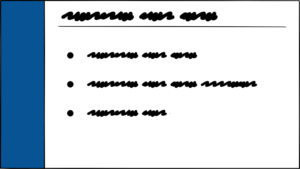
The three basic list elements in DITA all work well for slide content (as long as they contain a reasonable number of items):
- Unordered list (<ul>)
- Ordered list (<ol>)
- Simple list (<sl>)
If your lists contain more items than will fit on a slide, you may need to identify where the list can break to the next slide. As described later, it may be necessary to reduce the content in list elements to just a few words, for readability on screen.
The specializations of the DITA list types also work well. For example, the learning objectives in the DITA Learning and Training specialization (<lcObjective> within <lcObjectivesGroup>) convert easily to slides because the elements are specializations of <li> and <ul>.
The definition list (<dl>) element can convert well to slides, but much depends on the length of content in the term (<dt>) and definition (<dd>) elements.
Many guidelines about PowerPoint slides advise against nested lists. However, nested lists (of a small number of carefully worded items) are often necessary and can work in slides.
Images
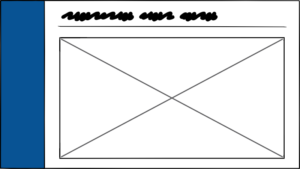
Conceptual illustrations can communicate a large amount of information. After all, a picture is worth a thousand words.
Individual <image> and <fig> (figure) elements will both easily convert to a slide master designed for a single image.
Just as you have to consider the length of text that will be converted to slides, with images, you need to consider the dimensions and resolution of your images. Detailed images that work well in printed books or on web pages might present a problem for those viewing slides generated from the same content.
Bitmap images that are small can cause similar problems, particularly if they have a low resolution. When the images are magnified on the slides, stair-stepping and anti-aliasing can become visible and distracting.
Tables
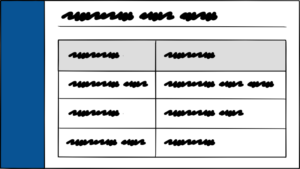
Complex tables with a large amount of information usually do not work well in presentations.
If a table has many rows and columns, a slide generated from that table will have many small cells that can only be populated with a very small font. This makes these tables unreadable. A table with a large amount of information will also cause the audience to focus on the slide rather than the presenter.
A table with a small number of rows and columns, and in which the cells contain just a few words, can work in a PowerPoint slide.
Both the <table> and <simpletable> elements will work. In some cases, you might choose to transform the <dl> (definition list) element into a table on a PowerPoint slide.
Less suitable content
Some DITA markup doesn’t alway convert well to slides, but it can in the right circumstances or with the right expectations.
Steps
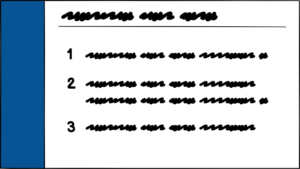
The <steps> element in the Task topic type can be converted to a slide. Depending on the material, all <step> elements in the task can be displayed on a single slide, or each step could potentially become a slide of its own. As shown later, this raises the issue of identifying how the elements in an individual topic are treated.
If you need to convert all <step> elements in a task to a single slide, you can make your slides far more effective by limiting the conversion to using only the <cmd> (command) element and ignore the other elements used in a <step>.
Code examples
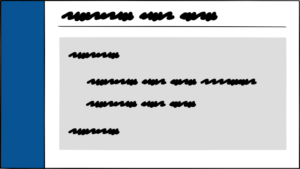
A brief code example of a small number of short lines can make an effective slide. Long examples where the font size must be reduced to fit lines across the width of a page should be avoided.
If you’re creating DITA topics expressly for conversion to slides, it’s better to consider limiting your code examples to snippets that show the essential parts of a command or function call.
If longer examples are warranted, consider using an illustration to describe the flow of operations, and save actual examples for your printed materials.
What doesn’t convert well to slides
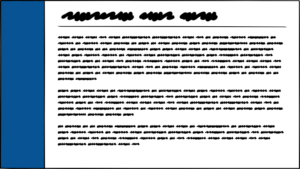
Any text longer than between six to ten words will be difficult to read on screen when presented. Also, when an audience is presented with a long chunk of text, they will try to read the text, rather than pay attention to the presenter.
For this reason we discourage converting paragraphs, notes, and any other long block of text to PowerPoint slides.
Another reason to avoid translating notes is that they’re normally used in text as an aside, additional information, or as a warning. This does not fit well with the type of information that’s normally presented on a slide.
Are your PowerPoint slide masters ready for DITA content?
In addition to the concerns about the content being transformed into slides, consider the design and selection of the PowerPoint slide masters used by the conversion.
In most cases, you will want to create a PowerPoint template file (.potx) that contains masters for all the slide types that you want to create. This allows you to preconfigure backgrounds, logos, and so on, on all your slides.
It is possible for the conversion process to generate everything on a slide, including a background, logos and other branding. However, using templates gives you richer, more consistent slides. And when your design changes, templates allow you to change the overall appearance of the slides by replacing the template, rather than having to modify the conversion process.
Based on past projects, I recommend that your slide masters include these slide types (however, your requirements might differ):
- Main title—Announces the title of the presentation
- Subtitle—Used between units of slides
- Bullet list—A title and a bulleted list (perhaps allowing sublists)
- Numbered list—A title and a numbered list (also possibly with sublists)
- Image—A title and a single image
- Conclusion—A slide asking for questions or saying “Thanks for coming”
Note that the conclusion slide doesn’t necessarily have to be generated from your content. When your slides are generated from DITA content, the converter can automatically insert a conclusion slide at the end of your deck.
You may also need:
- Table—A title and a table that uses most of the body area of the slide
- Quote—Possibly a title and a large central space for a quote and its attribution
Beyond these types, things can start to get messy. With the types listed above, there’s a direct correspondence between the types and the DITA content used to populate them. As the slide design starts to get more complicated, there’s a greater reliance on users making markup decisions in their content (or others adding markup later in the process) to guide the conversion of content into slides.
These slide types are fairly common, but usually require additional instructions in the DITA markup:
- List in multiple columns (usually two columns)
- Side-by-side content. An image (or table) in one half of the slide and a text area on the other half
The conversion process can automatically populate a multi-column list, including finding a location for the column break. But there will almost always be a need to force a column break. What’s more, the conversion requires a way to tell when it needs to use a two-column list format rather than a single column, either through an explicit control on the list element or automatically based on the number of list items.
For any kind of side-by-side layout, markup plays an even larger role. It’s rare to find content that can be automatically converted to a side-by-side slide format. Instead, the content has to be authored specifically for this format.
A good general rule is: the more manual intervention that’s required to populate a slide template, the harder it is to convert from DITA without extensive modifications to the markup.
It’s important to discuss the capabilities and shortcomings of DITA-to-PowerPoint conversions with the person creating the PowerPoint slide masters. In particular, point out that content will be flowed into a series of slides, and you want to eliminate any alterations made by hand.
Mapping DITA content to slide masters
The considerations of appropriate DITA elements and the design of the slide masters are bound by—and dependent on—what gets converted into slides and what doesn’t.
In general, mapping content to slides is greatly dependent on the degree of reuse. Content that is authored specifically for slides will be much easier to transform than content that is intended for much broader uses. The main problem being that content that is authored for broader uses will contain extraneous material that the conversion program will have to sift out.
Eliminating unnecessary content can be done implicitly, by identifying specific elements (or contexts), or explicitly, by adding attributes or additional markup that indicates use.
Summary
If you plan to transform existing DITA content to PowerPoint:
- Consider the content you want to transform
- Work with the PowerPoint template designer to create a set of masters that will work with little or no intervention
- Identify how elements will be included or excluded from conversions
Adding PowerPoint as a format will often require much more markup and attention to elements than other DITA reuse scenarios.
This white paper is also available in PDF format.
[/cbdgc-form]
About the author